Moving to a new system can be a big change for your families. To make the transition easier, use the email templates below to explain what's changing and guide families through setting up their new Class Manager account.
You can copy the emails and customise the content with your studio name, booking link and any other information relevant to your families.
Moving from Classic Class Manager to New Class Manager
Use this template if you're already using Classic Class Manager and are moving to New Class Manager.
Subject: We're upgrading our software
Hi
I wanted to let you know we've made the decision to upgrade our studio software. We're moving from Classic Class Manager, which we currently use, to the new version of Class Manager, the latest release of the same platform. This upgrade brings a lot of benefits for the studio, including an easier dashboard and a range of features that will help us run [Studio Name] more efficiently.
What does this mean for you?
Not much will change day-to-day. We'll be sending you a link to set up your new parent dashboard, where you'll be able to:
Book your lessons
View your schedule
Message us directly through in-app chat
Keep up with the latest studio updates via Spotlight, our in-app social feed
We'll send the sign-up link soon, and we'd really recommend downloading the app ahead of time. Download the app here: For Android For iPhone
Thank you for sticking with us as we move over to the new platform. If you have any questions or concerns, just let us know.
Switching From Another Software to Class Manager
Use this template if you're moving to Class Manager from another software provider.
Subject: A new way to manage your bookings with us
Hi
We wanted to give you a heads-up about a change coming to [Studio Name]. We've decided to move from our current booking system to Class Manager, a platform built specifically for studios like ours.
This is a bigger change than a typical update, so we wanted to explain why. We made this decision because it means an easier, more reliable experience for both the studio and your family, with everything in one place instead of scattered across different tools.
What does this mean for you?
We'll walk you through the switch step by step, and we'll send a link soon for you to set up your new parent dashboard, where you'll be able to:
Book your lessons
View your schedule
Message us directly through in-app chat
Keep up with the latest studio updates via Spotlight, our in-app social feed
We'd also recommend downloading the app ahead of time so you're ready to go. Download the app here: For Android For iPhone
We know any change takes a bit of getting used to, so please bear with us, and reach out any time if you have questions.
Benefits for Parents
This template can be sent once you're ready to introduce families to the features they'll be able to use.
Subject: Here's what's new for you
Hi
Now that we're set up on Class Manager, here's what it means for you day-to-day.
Easy communication
Chat with us directly in the app- no more keeping up with WhatsApp groups, email chains, or Facebook posts to stay in the loop.See what's happening
Spotlight is our in-app feed where you can see studio news, updates, and highlights as they happen.Book with ease
View the full class schedule, see who's teaching, and check where each class is taking place, all in one place. Booking and viewing your classes takes just a couple of taps.Overall, it's simple, intuitive, and designed to make staying connected with [Studio Name] that much easier.
How to Set Up Your Parent Account
Use this template to guide families through creating their Class Manager account.
Subject: Setting up your Class Manager account, step by step
Hi
Here's a quick walkthrough to get your account set up on Class Manager. It only takes a couple
of minutes.Step 1: Visit your studio's link
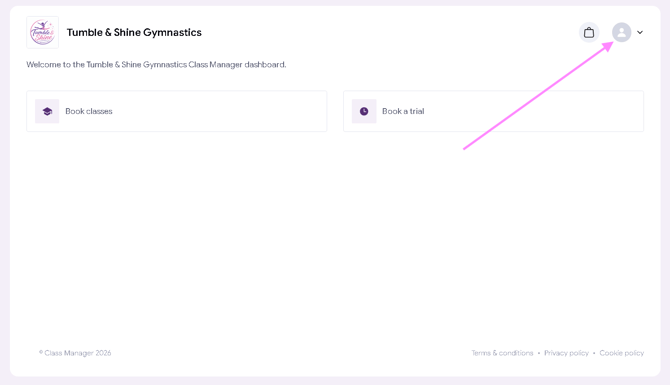
Go to classmanager.com/[StudioName]
Step 2: Click the profile icon
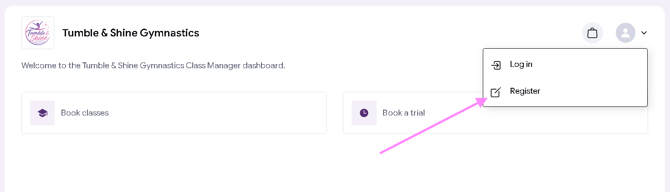
In the top right corner, click the profile icon, then select Register.
Step 3: Enter your email and password
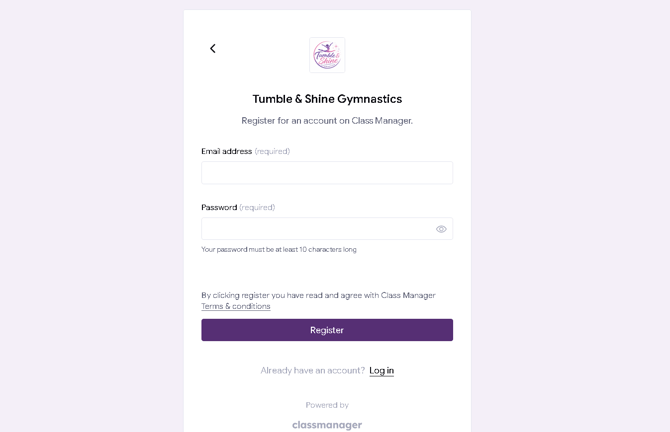
Add your email address and choose a password you'll remember. It needs to be at least 10 characters long.
Step 4: Add your details
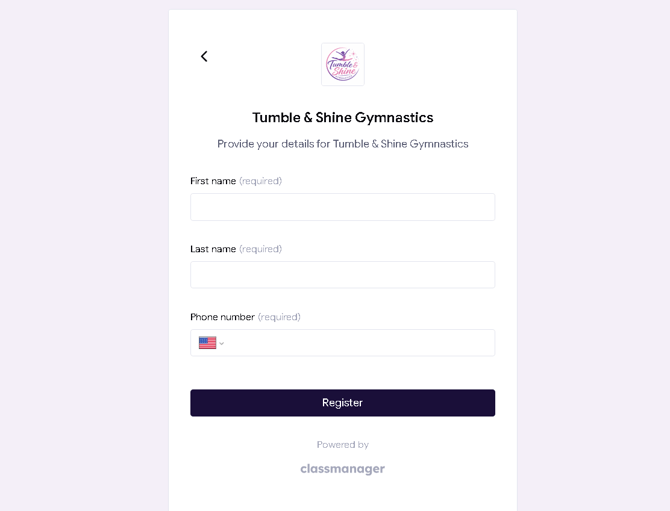
You'll be asked for a few more details, including your first name, last name, and phone number.
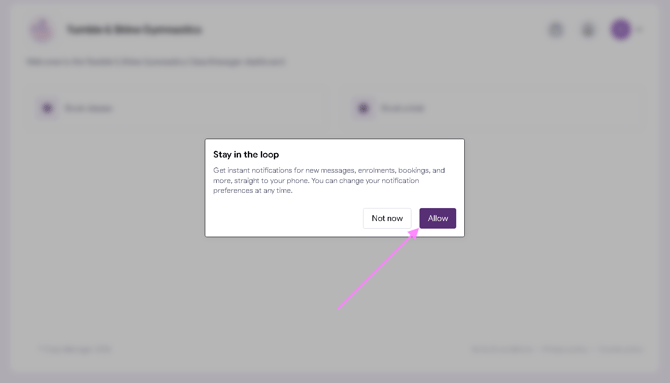
Step 5: Turn on notifications
You'll then be prompted to turn on notifications. We'd recommend saying yes, especially if you've downloaded the app, so you never miss a message, booking confirmation, or studio update.
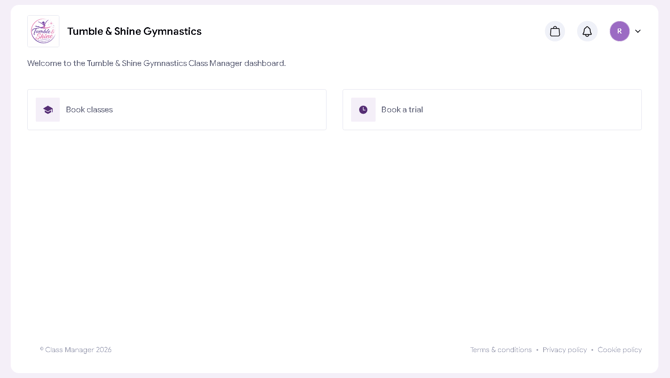
Step 6: You're in!
From here, you can browse classes, book trials, and add your students to your account.
If you get stuck at any point, just reply to this email and we'll help you out.
How to Set Up Your Parent Account: With Screenshots
Subject: Setting up your Class Manager account, step by step
Hi
Here's a quick walkthrough to get your account set up on Class Manager. It only takes a couple of minutes.
Step 1: Visit your studio's link
Go to classmanager.com/[StudioName]. You'll land on your studio's dashboard.
Step 2: Click the profile icon
In the top right corner, click the profile icon.
Then select Register from the dropdown.
Step 3: Enter your email and password
Add your email address and choose a password you'll remember. It needs to be at least 10 characters long.
Step 4: Add your details
You'll be asked for a few more details, including your first name, last name, and phone number.
Step 5: Turn on notifications
You'll then be prompted to turn on notifications. We'd recommend saying yes, especially if you've downloaded the app, so you never miss a message, booking confirmation, or studio update.
Step 6: You're in!
From here, you can browse classes, book trials, sign waivers, and add your students to your account.
If you get stuck at any point, just reply to this email, and we'll help you out.